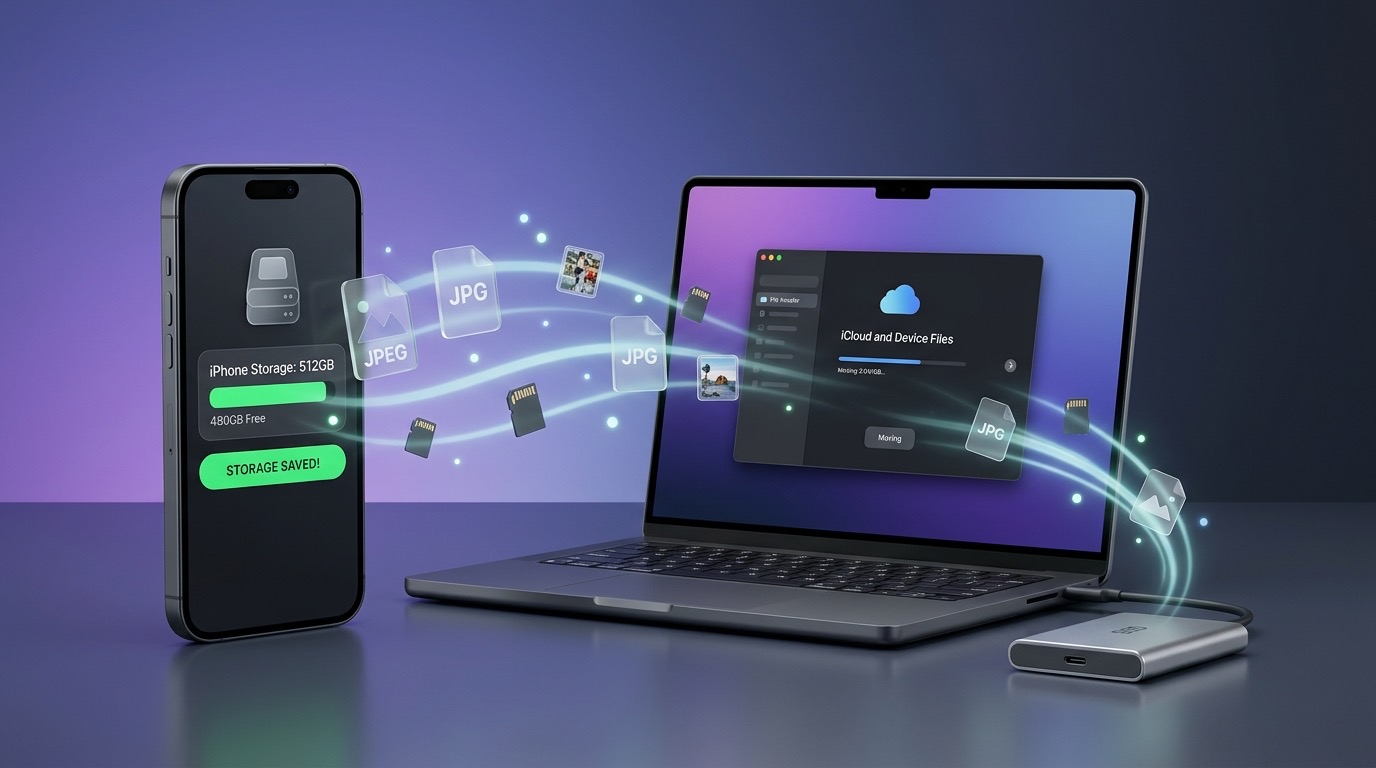
Every year, millions of smartphone users run into the exact same dreaded notification: "iPhone Storage Almost Full" or "iCloud Storage Is Full – Photos not syncing".
With modern smartphone cameras shooting 48-megapixel ProRAW photos and 4K 60fps ProRes videos, a single minute of video can easily consume 400 MB to 3 GB of storage. Apple's base 5 GB of free iCloud storage fills up within days, leaving users facing an endless dilemma:
- Pay Apple endless monthly subscription fees ($0.99/mo for 50 GB, $2.99/mo for 200 GB, or $9.99/mo for 2 TB). Over 3 years, that easily totals $100 to $360.
- Buy expensive high-tier phone storage when upgrading: Apple charges up to $200–$400 extra just to jump from 128 GB to 512 GB or 1 TB.
- Manually delete precious memories to make room for system updates.
Fortunately, there is a better way. With SyncDrop, you can completely eliminate the "storage full" crisis by turning your home computer or network drive into an automated, private photo backup vault.
Why Is Your iPhone Storage Really Full?
If you go to Settings > General > iPhone Storage, you will likely find that Photos & Videos account for 60% to 85% of your total occupied storage space.
Unlike apps or caches that can be cleared, photos and videos are irreplaceable personal memories.
The Hidden Catch with iCloud "Optimize Storage"
Many users turn on "Optimize iPhone Storage" in iCloud settings, which keeps low-resolution thumbnails on your device and uploads original full-resolution files to Apple's cloud.
However, this creates severe friction:
- Offline unavailability: When traveling, hiking, or on flights with poor internet, you cannot open or edit your full-resolution photos.
- Vendor lock-in: Once your library grows past 50 GB or 200 GB, you are forced to pay Apple forever. If you ever cancel your subscription, Apple stops syncing and threatens to delete your files.
- Privacy vulnerability: Your personal family pictures, documents, and intimate photos are stored on remote third-party cloud servers.
The Solution: Automated Local Backup to PC, Mac, or NAS
Instead of paying recurring cloud rent, you already own devices with hundreds of gigabytes (or terabytes) of free space: your home laptop, desktop PC, external SSD, or home NAS.
By using SyncDrop, you can establish an automated, wireless backup pipeline:
[ iPhone / Android ]
        │  (Automatic P2P sync via Home Wi-Fi when plugged in)
        ▼
[ Windows PC / Mac / NAS Storage Pool ]
  • Original HEIC, Live Photos & 4K Videos preserved
  • Full EXIF metadata & GPS location intact
  • Zero monthly fees, zero cloud exposure
Step-by-Step: How to Free Up 50GB–200GB in 3 Steps
Step 1: Set Up SyncDrop on Phone and Computer
- Install SyncDrop on your iPhone from the App Store.
- Run the lightweight SyncDrop Desktop client on your Windows PC or Mac (or configure direct WebDAV/SMB connection to your NAS).
Step 2: Configure the "Plug-in & Backup" Smart Trigger
Inside the SyncDrop mobile app:
- Set up an automated rule: "Trigger backup when connected to Home Wi-Fi AND phone is charging".
- Designate the destination folder on your computer (e.g.
D:\Backups\iPhone_Photos_Original). - Enable Incremental Sync: SyncDrop uses fast SHA-256 hash checking to back up only newly captured photos and videos, skipping duplicates.
Step 3: Safely Clear Backed-Up Photos
Once SyncDrop completes the backup:
- Verify that your full-resolution originals and 4K videos are safely stored on your computer or NAS.
- In your iPhone Photos app, you can safely delete bulk albums from past vacations or large 4K video clips, knowing complete bit-for-bit copies are secured on your private drive.
- Immediately reclaim 30 GB to 100+ GB of free local storage without spending a single penny on iCloud upgrades.
Cost Comparison: Cloud Subscriptions vs. Local Storage
| Option | 3-Year Total Cost | Privacy | Transfer Speed | Storage Limit |
|---|---|---|---|---|
| iCloud+ (200 GB) | ~$108 ($2.99/mo) | ⚠️ Stored on Apple servers | Limited by broadband upload speed | 200 GB hard cap |
| iCloud+ (2 TB) | ~$360 ($9.99/mo) | ⚠️ Stored on Apple servers | Limited by broadband upload speed | 2 TB hard cap |
| Buying 1TB iPhone | +$400 upfront cost | ✅ Local | Fast | Fixed hardware cap |
| SyncDrop + Home PC/NAS | $0 recurring | 🔒 100% Private (Local Wi-Fi) | Gigabit LAN (40–100 MB/s) | Unlimited (size of your hard drive) |
Key Takeaway
You do not need to buy a brand new 512GB smartphone, nor do you need to pay endless monthly fees to Apple or Google just to keep your photo library safe.
Set up SyncDrop once, let your photos back up silently when you plug in at night, and keep your phone fast, light, and free of storage warnings forever.
Related Guides
How to Losslessly Export All iCloud Photos to an External Drive or NAS on Mac (No 1,000-Item Limit)
Out of iPhone/Mac storage or stuck with iCloud Web's 1,000-photo export limit? Learn how SyncDrop for macOS exports full-resolution HEIC, JPG, RAW, 4K videos, and Live Photos directly to your external SSD or NAS with pause/resume support.
Mobile Studio Mode Guide: Real-Time Camera Tethering to Mac/PC, Smart TVs, NAS, Google Drive, Dropbox, SFTP & S3
Turn your smartphone into a wireless tethered camera! Stream photos instantly to Mac/PC monitors or Smart TVs with SyncDrop Studio Mode while syncing seamlessly to NAS, Google Drive, Dropbox, SFTP, WebDAV, SMB & S3.